
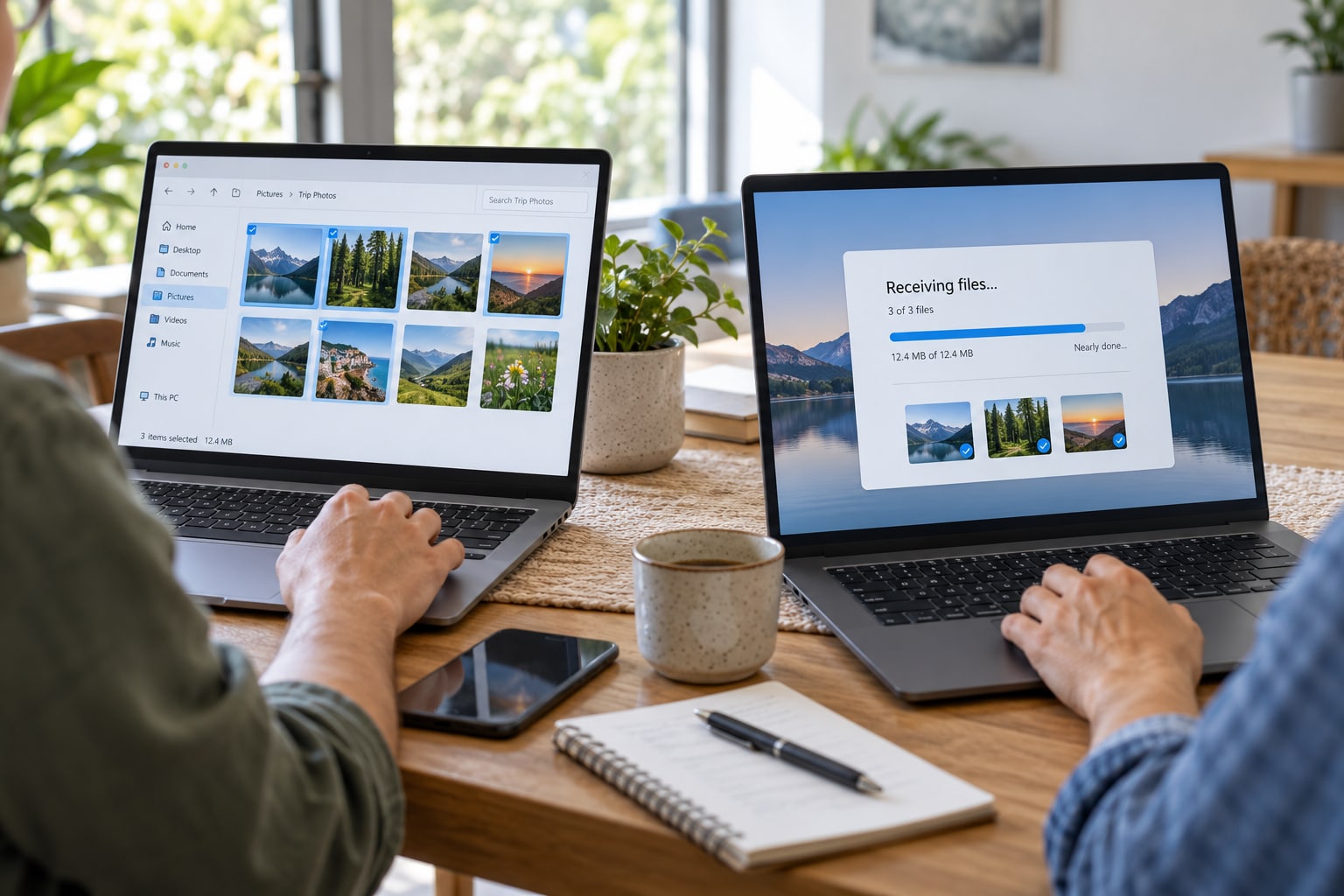
Two people sit at the same table with their PCs, yet a document still travels through an email sent to its owner. Windows Nearby sharing offers another route for compatible devices.
This practical article covers an existing feature. It does not promise a universal AirDrop replacement or automatic compatibility with every nearby phone and computer.
Prepare both devices
Microsoft describes transfers between Windows PCs using Bluetooth or Wi-Fi where supported. On Windows 11, look under Settings, System, Nearby sharing. Both devices need preparation and the recipient accepts delivery.
The official guide distinguishes sharing with your own devices from discovery by nearby users. Choose the scope that matches the task.
Start with an unimportant file
Our advice is to try an ordinary picture or test document first. Check the receiving PC's name, then ask its user to open the delivered file.
That matters more than an upload animation. Establish that the right file reached the right machine and is actually usable.
If computer names look similar, identify them before trying again. Repeatedly sending a sensitive document is not a sensible troubleshooting method.
Keep broad discovery temporary
We recommend revisiting the setting after a one-off exchange, especially if you enabled discovery by everyone nearby. A choice made to help a colleague should not remain indefinitely through forgetfulness.
Physical proximity is not proof of identity either. In a public location, devices can be close without belonging to the people you are working with.
Follow organisational rules too. A technically possible transfer is not necessarily approved for every document. Keeping the task simple should not mean bypassing a policy you would normally respect.
A transfer is not a backup strategy
Distinguish sending a copy from managing the main document. Which file will continue to change, and where will the final version live?
For a single exchange, the answer may be straightforward. Repeated collaborative work may need an organised shared space rather than an expanding collection of copies.
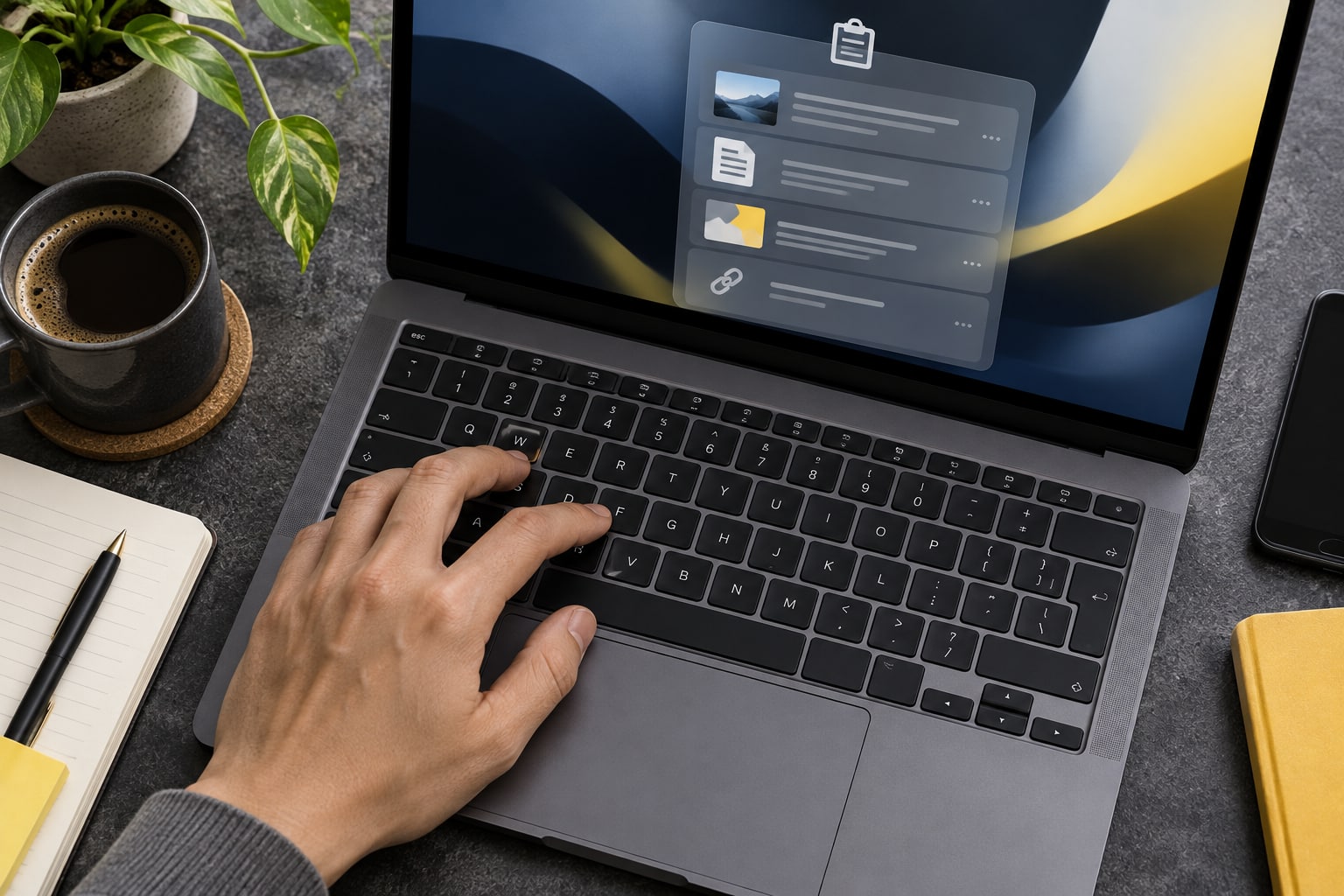
This complements Windows + V clipboard history: built-in conveniences work best when their boundaries are understood. A shortcut should remove an unnecessary step without creating uncertainty about where information lives.
Once the small test works, repeat the same identifiable process for the real document. The confidence comes from a known recipient and verified result, not from the assumption that nearby devices must be safe.
Cover: generated illustration; no real personal documents are reproduced.
Join the discussion
Comments
Loading comments…