
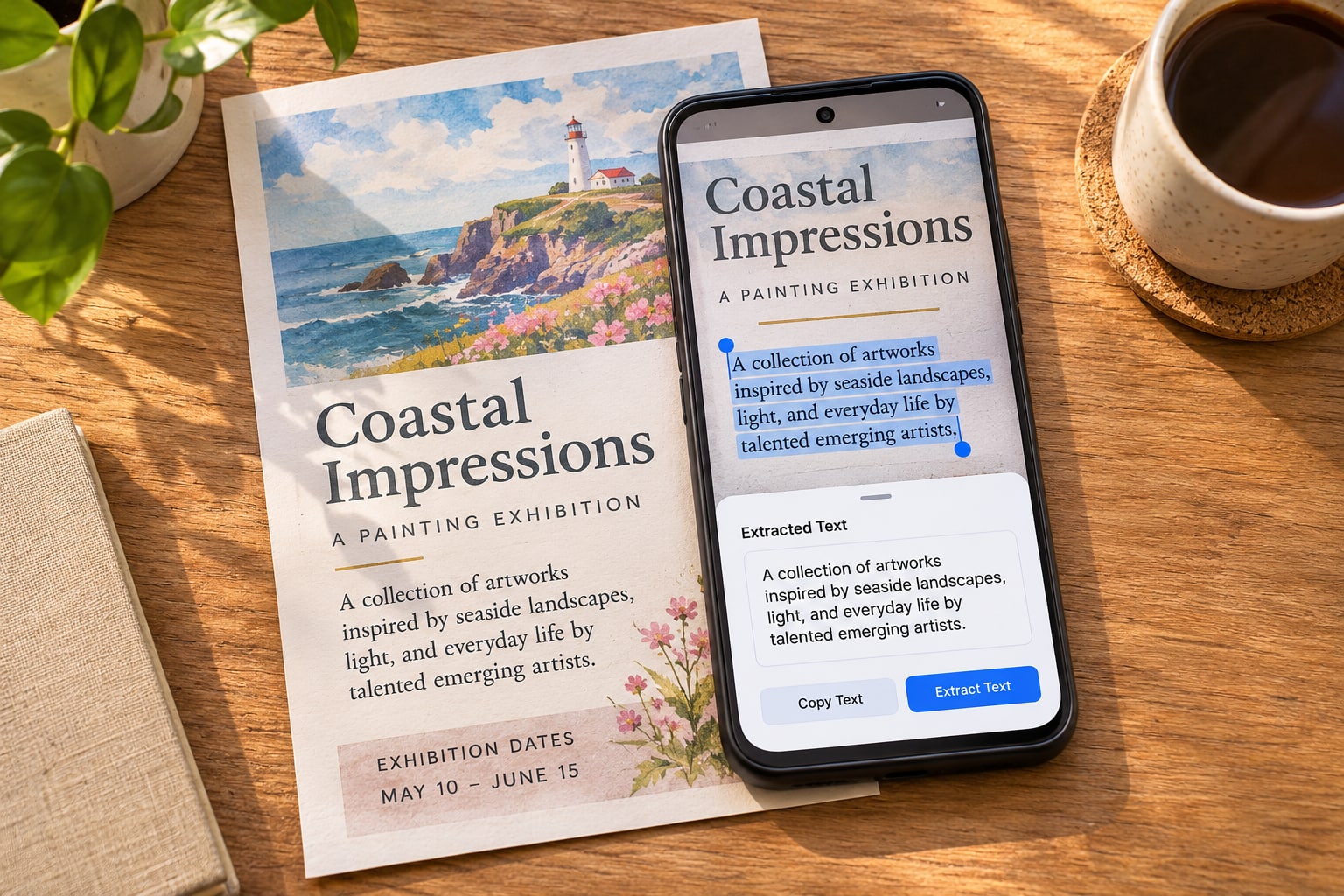
A photographed notice, a label reference or a projected note can be tedious to retype. Live Text lets you interact with text in an image, but recognition does not make the resulting document verified.
The Apple guide, checked November 15, 2026, describes selection, copying and other actions on supported devices and languages. This explains an existing workflow, not a new AI announcement.
Begin with a simple example
Open an image in Photos or pause a video at the relevant text. Use text detection, select the desired section and copy it into the destination application.
Start with a sentence containing no sensitive information. You can learn selection without accidentally sending a personal document elsewhere.
If the option is missing, check compatibility and the Live Text setting under Language & Region. Do not immediately assume a paid additional application is necessary.
Review consequential details
Copied text can look convincing while containing a meaningful error. We recommend checking numbers, units, dates and similar-looking characters.
For a part reference or identifier, compare the result against the original image before using it. A zero and the letter O can produce different results in a form.
Recognition does not validate the printed information itself. An outdated notice remains outdated even when every word is recognised correctly.
Separate recognition from action
Apple also describes actions involving phone numbers and web addresses. Verify the destination before opening a link or initiating an action.
Recognised information does not become trustworthy because it is clickable. Apply your usual checks when the document's origin is unknown.
In a workplace, follow document-handling rules. Convenient selection does not change who is authorised to receive the extracted text.
Preserve useful context
After pasting, add origin and capture date where needed. A sentence alone may lose a condition above it or a note at the bottom of the page.
Review the destination result, not just the photograph. Lost formatting can change the meaning of a list.
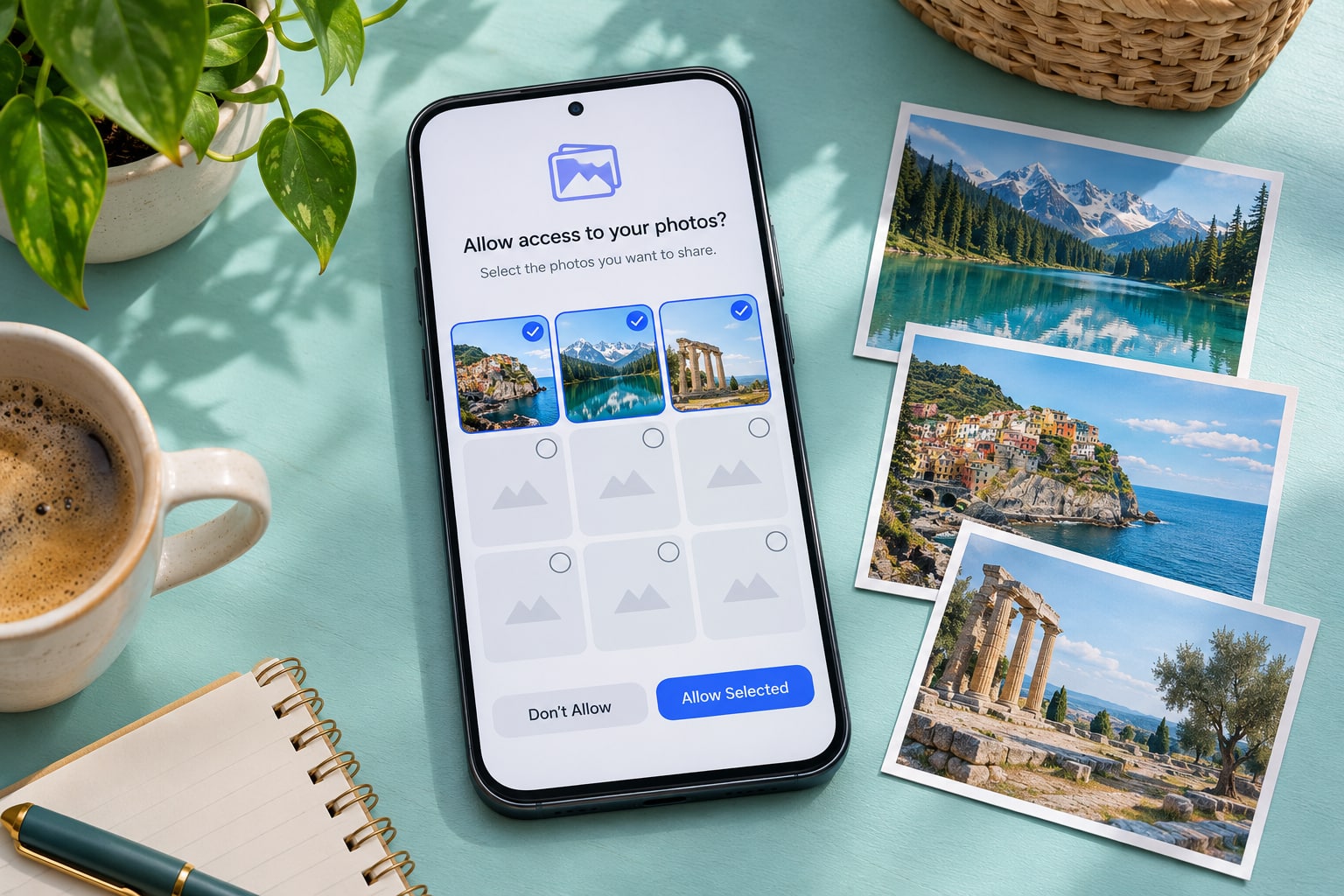
This complements our photo-access article. One helps use an image; the other controls who can consult it. Saving time does not require abandoning that control.
Visual: generated editorial illustration, not an official screenshot.

Join the discussion
Comments
Loading comments…