
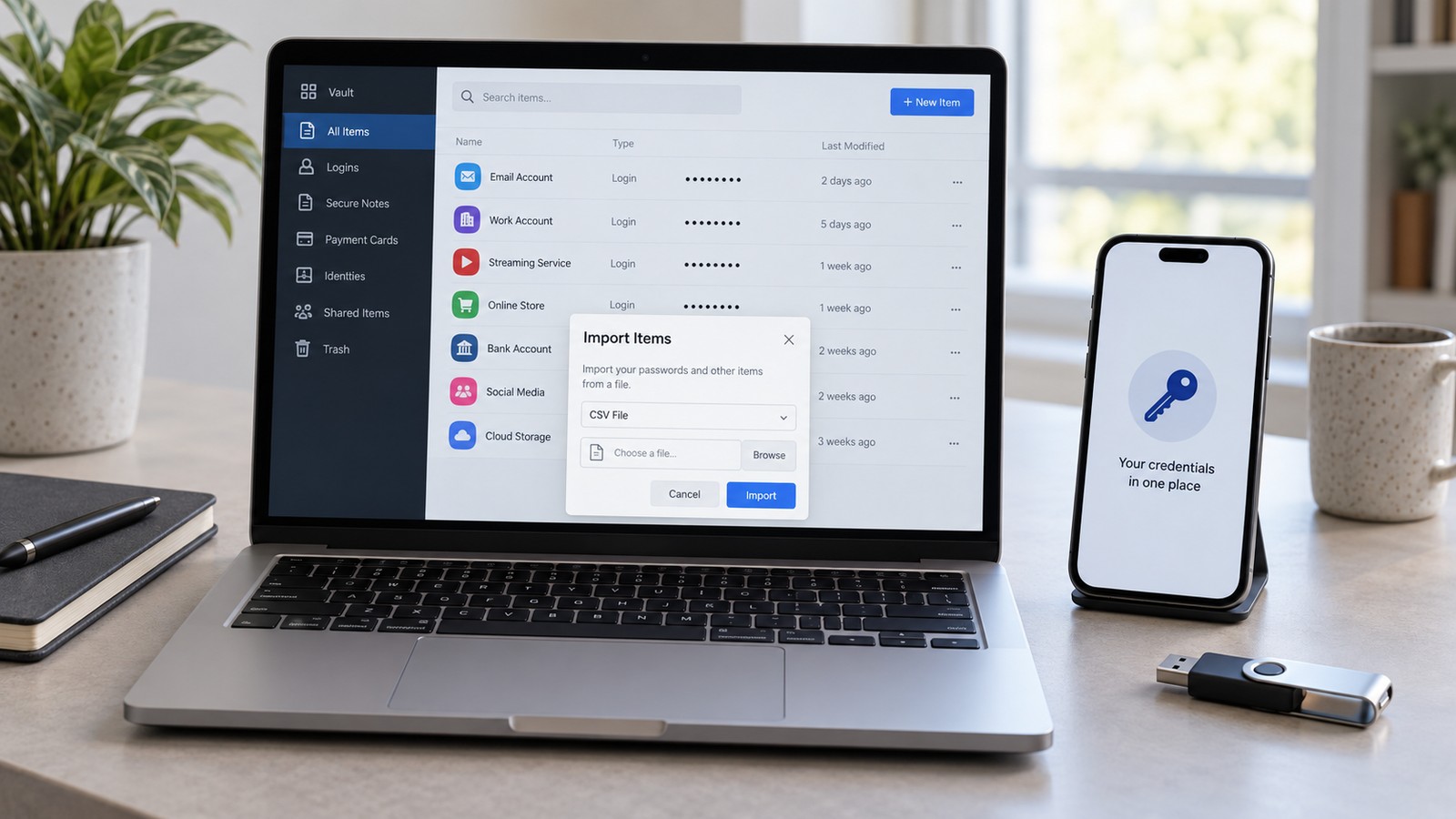
Changing password managers can sound complicated, although importing credentials may be fairly straightforward. On Mac, Apple's Passwords app accepts a CSV file exported by another manager. The sensitive moment is not just opening that file: it is the entire period during which this copy of your credentials exists outside the usual vault.
This is not a new-release announcement. It is a practical consideration for people who want to bring credentials into Apple's ecosystem without leaving a forgotten archive behind.
Prepare before exporting
Start by checking that your current manager provides a compatible export and that you have recovery options for important accounts. Avoid scheduling the migration immediately before travel or a meeting that depends on signing in.
Our recommendation is to use your own computer in a session you control. Do not use a shared workstation merely to save a few minutes. Keep the original application available until you have checked the result.
A short inventory is enough: primary email, Apple account, administrative services, work tools and everyday shopping accounts. It helps prioritise which logins to verify.
Import the file on your Mac
Apple's procedure starts with exporting passwords from the original manager as CSV, then opening Passwords on Mac and using the File menu to import passwords from a file.
Apple says the import does not replace passwords already present and that unsuccessful imports can be reviewed. A completed import therefore does not mean every duplicate has been resolved.
Check a representative sample first. A site with multiple accounts, an old address and a frequently used service can expose problems faster than reading the entire list.
A CSV is not an encrypted vault
In its export documentation, Apple highlights the file's sensitivity and asks users to delete it after use. A readable CSV should not be treated as a backup protected by the application's password.
Our recommendation is not to email it or place it in a shared folder. Once the import is verified, delete the working copy and review unintended duplicates: repeated downloads, attachments, external drives or folder synchronisation.
Ordinary deletion is not a universal guarantee that every historical backup has been erased. If the file reached a location you no longer control, assess the exposure and change affected credentials according to the risk.
Passwords are not every form of access
Passkeys, shared credentials and different recovery codes are not automatically covered by a simple CSV transfer. Check each category against your applications' capabilities instead of assuming the entire vault follows one route.
Before retiring the old manager, actually sign in to several essential services. A successful migration leaves usable access and no forgotten export, not merely a success message.
Do not rush the cleanup to create the impression of a finished migration. Record which exceptions remain, deal with them individually and only then decide whether you can stop relying on the previous application.
Cover visual: an illustration generated for this article, not an official service screenshot.



Join the discussion
Comments
Loading comments…