
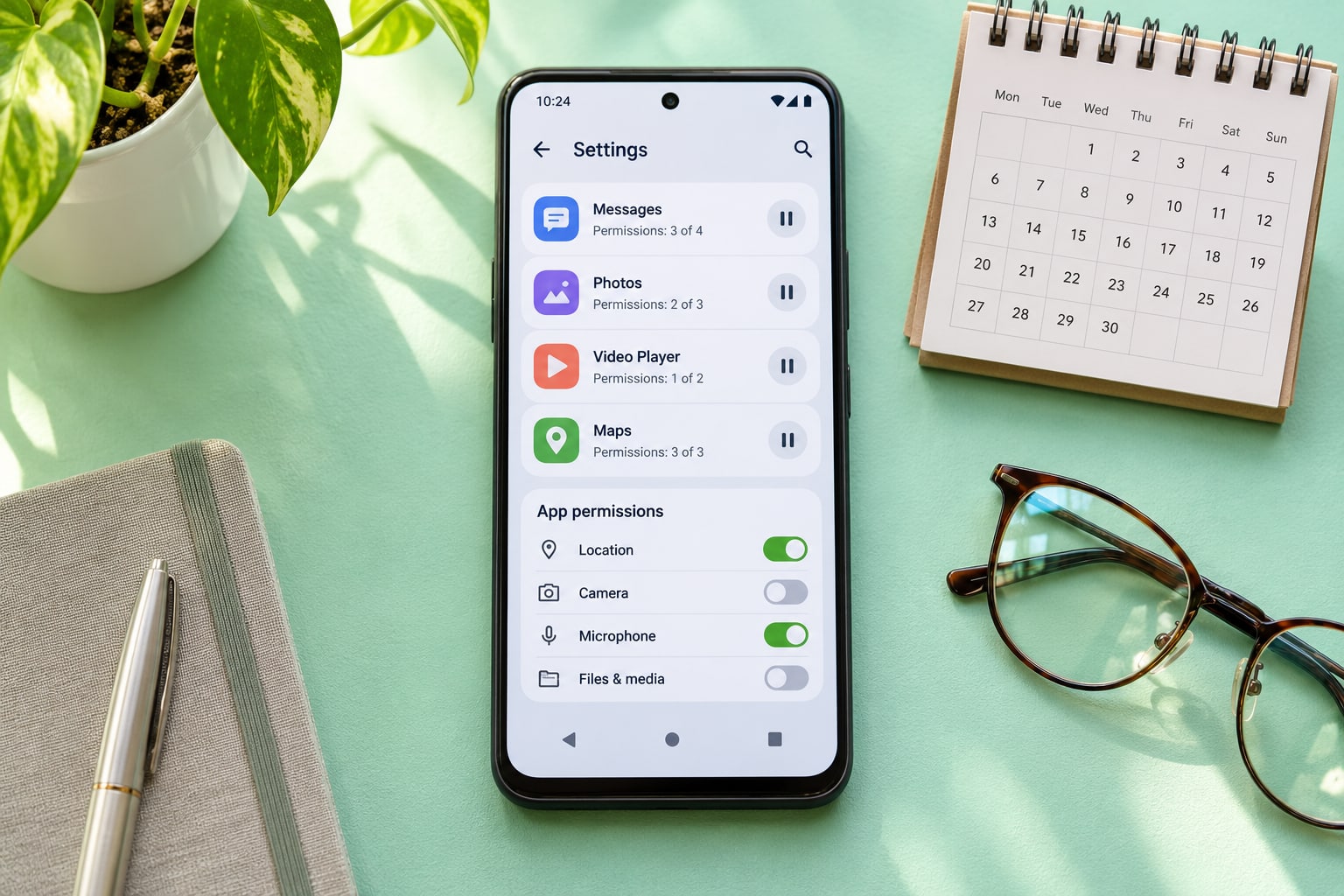
A travel application or a service used a few times a year seems to stop reacting. Notifications disappear, then a permission must be requested again. That does not necessarily mean the account is broken. Android can optimise applications that have been unused for a long time, including revoking permissions and stopping notifications.
The official Android help page describes this pausing behaviour and the option to exclude an application. This practical explainer was checked on November 9, 2026. Settings labels vary by device; this is not presented as a newly launched feature.
Check before reinstalling
Our recommendation is to identify the symptom first. Does the application fail to open, reject one action or simply omit a notification? Those situations do not necessarily have the same explanation.
In application settings, look for the unused-apps section, then inspect the relevant application's information page. Reinstalling immediately can complicate diagnosis by introducing a fresh sign-in, another configuration step or loss of local preferences.
Write down what was not working before making a change. A short note helps you establish whether the setting actually addressed the original problem.
Understand the intended compromise
The documentation also lists temporary-file cleanup and stopping background activity. This optimises software you no longer use; it does not establish that the application is dangerous.
We advise distinguishing genuinely abandoned software from seasonal tools. A holiday application can be unnecessary for most of the year and important the day before departure. An exception should serve that need rather than become a blanket way of disabling the mechanism.
Exclude only what needs to remain active
Where available, the application's information page lets you turn off pausing when unused. Then test the workflow you actually need.
Our recommendation is to try a non-urgent notification and record the result. An exception to pausing does not guarantee every notification: other settings, connectivity and the remote service may matter. Treat this as one diagnostic clue, not a complete explanation.
Restore necessary permissions, not every permission
If access is requested again, relate it to your current action. Navigation and attaching a photograph do not require the same permissions.
Avoid accepting everything simply to dismiss a dialog. If the request is unclear, stop and consult the application's help. For an important service, also check your sign-in methods before the day you depend on it.
This routine complements our Android private-space explainer. Privacy controls, inactivity and notification delivery are separate issues: a silent phone does not identify which one is responsible.
Cover visual: generated editorial illustration, not an official screenshot.

Join the discussion
Comments
Loading comments…