
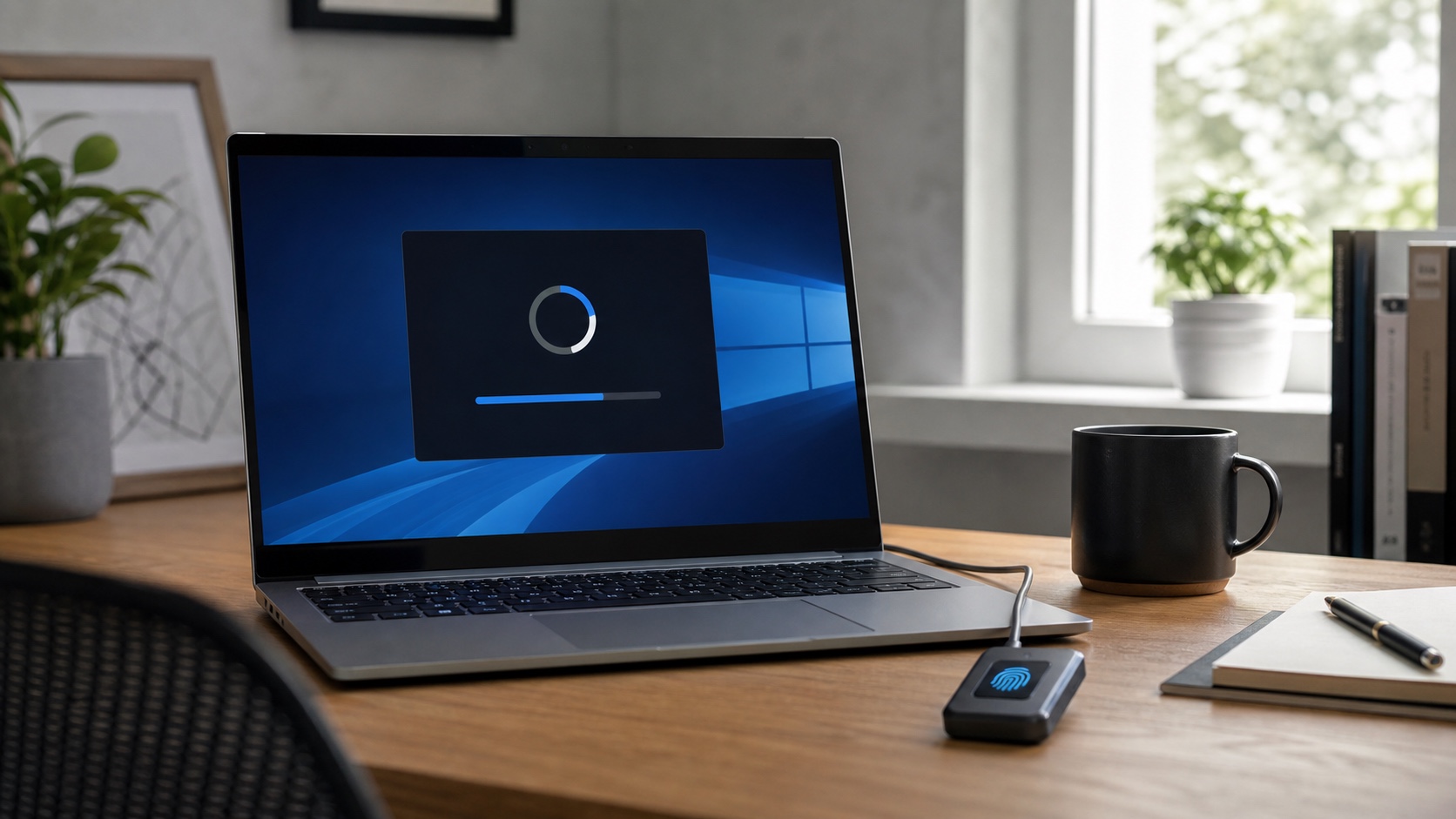
The monthly Windows 11 update expected on Tuesday, August 11 should combine security fixes with improvements already tested in the KB5101684 preview. Microsoft documents broader Windows Hello ESS support for compatible external fingerprint readers, the option to remove an image-generation component on some Copilot+ PCs, and fixes affecting File Explorer, power settings and backups.
One caveat matters at publication time: Microsoft has not yet posted the final August security update notes. The changes below come from the July 28 non-security preview, which Microsoft says will be included in the next security update, but the final KB number, fixed vulnerabilities and known issues still need confirmation.
The short answer
| Question | Answer |
|---|---|
| Should I install the update? | Yes when it is offered, especially for the security fixes, after backing up and checking known issues. |
| Will every PC receive every feature? | No. Some features roll out gradually, and a few require a Copilot+ PC or compatible hardware. |
| Can all Windows AI be uninstalled? | No. The documented option concerns the local Image Generation component on supported Copilot+ PCs. |
| Does Windows Hello support every USB reader? | No. The fingerprint reader must support Enhanced Sign-in Security. |
| Will a restart be required? | Assume that a conventional cumulative update will require one unless Windows Update says otherwise. |
| Should businesses deploy it immediately? | A representative pilot phase remains the safer approach before broad rollout. |
Windows Hello expands to external fingerprint readers
The most visible desktop change concerns Windows Hello Enhanced Sign-in Security, or ESS. The protected biometric path is no longer limited to integrated sensors: Microsoft is beginning to support compatible external fingerprint readers, including on desktops and Copilot+ PCs.
The word “compatible” is important. Connecting an old USB reader does not automatically enable ESS. The device, its driver and the PC must support Microsoft's trusted path. After the update, enrollment takes place under Settings, Accounts and Sign-in options. If the reader does not appear as compatible, consult the manufacturer's documentation instead of bypassing security requirements.
For a desktop workstation built around a keyboard, monitor and dock, this can make biometric sign-in practical without a sensor built into the chassis. In managed environments, IT teams still need an approved model list and a driver lifecycle policy.
One AI component becomes removable
On supported Copilot+ PCs, Windows should allow users to remove the installed AI component used for image generation. The option answers a straightforward concern: a local model consumes storage and provides a feature that some users may never need.
This is not a universal switch for removing Copilot, the NPU or every AI capability in Windows. Microsoft specifically names the Image Generation component. Other local models, search features and cloud services have separate delivery mechanisms.
The storage recovered will depend on the machine and the component installed. Before removing it from a managed fleet, determine whether any business application or Windows feature depends on it. For an individual, the practical rule is to remove only an explicitly optional component that they know they do not use.
File Explorer and network backups get useful fixes
The preview fixes an awkward issue on DFS network drives. When a PC started offline and later reconnected, Windows could incorrectly treat files as coming from the Internet. File Explorer's Preview Pane would then display a warning, and copied files could receive an unexpected Mark of the Web.
Microsoft also fixes automatic File History backups to an SMB share failing with a false invalid-credentials message. Both defects are particularly relevant to environments where documents and backups live on a NAS or file server.
General reliability work also targets explorer.exe, Jump Lists, recent files, sharing, Task View and multiple desktops. These changes do not redesign the interface, but they can eliminate frequent interruptions that are difficult to diagnose.
Battery, sleep and power settings
Microsoft says power choices will apply more consistently across all power plans. This includes display timeout, sleep, hibernation, power and sleep buttons, and lid-close behavior. The update also restores the setting that controls when Energy Saver starts under Settings.
Laptop owners should review these values after installation. Open Settings, System, Power & battery, and check behavior both on battery and while plugged in. A company policy can override local choices, so the visible setting is not always the final rule enforced on a managed device.
The update also changes post-update cleanup logic. Microsoft expects better performance immediately after installation, a period when indexing and maintenance can otherwise generate noticeable disk and processor activity.
Smaller changes that may still matter
The release improves mouse cursor size persistence, sizes system dialogs correctly on small tablets and reduces obstruction in Magnifier on touch devices. Magnifier's horizontal and vertical touch bars are now off by default but can be re-enabled in Accessibility settings.
Microsoft is refreshing the Start menu account control with a subscription badge for Microsoft accounts. Windows Setup gains a parental-controls notice. Time-zone detection, DHCP renewal, IPPS printing and clipboard reliability in Remote Desktop sessions are among the other affected areas.
Not every feature will necessarily appear on the same day. Microsoft frequently uses controlled rollouts and states that availability varies by device and market. Two PCs running the same Windows version may therefore receive a change at different times.
Preparing the update without unnecessary risk
On a personal PC, first make sure important documents are synchronized or backed up elsewhere. Connect a laptop to power, leave enough free space and avoid starting the installation just before travel or a meeting. After the restart, check Wi-Fi, audio, printing, VPN access and biometric devices.
For an organization, a representative pilot ring remains the right first step. Include systems using DFS, SMB, external fingerprint readers, VPN clients, printer drivers and endpoint security tools. Deployment logs should distinguish an installation failure from an application regression after reboot.
Before broad approval, consult the final KB article and Windows Release Health dashboard. A preview does not contain the final CVE list, and Microsoft can add a known issue after early deployment feedback. Preparing today is sensible; declaring an emergency before the security bulletin exists is not.
What still needs confirmation
Three pieces of information will determine the final deployment decision: the cumulative update number, the vulnerabilities addressed and any known issues. An actively exploited flaw could justify acceleration, while a documented hardware conflict could require a targeted hold.
The functional direction for versions 24H2 and 25H2 is already reasonably clear. External Windows Hello support, an optional image model, File Explorer reliability, SMB backup fixes and power settings are the most practical changes. Security evidence, however, should set the installation schedule rather than curiosity about a feature. This article will be updated if the final release notes materially change that assessment.

Join the discussion
Comments
Loading comments…