
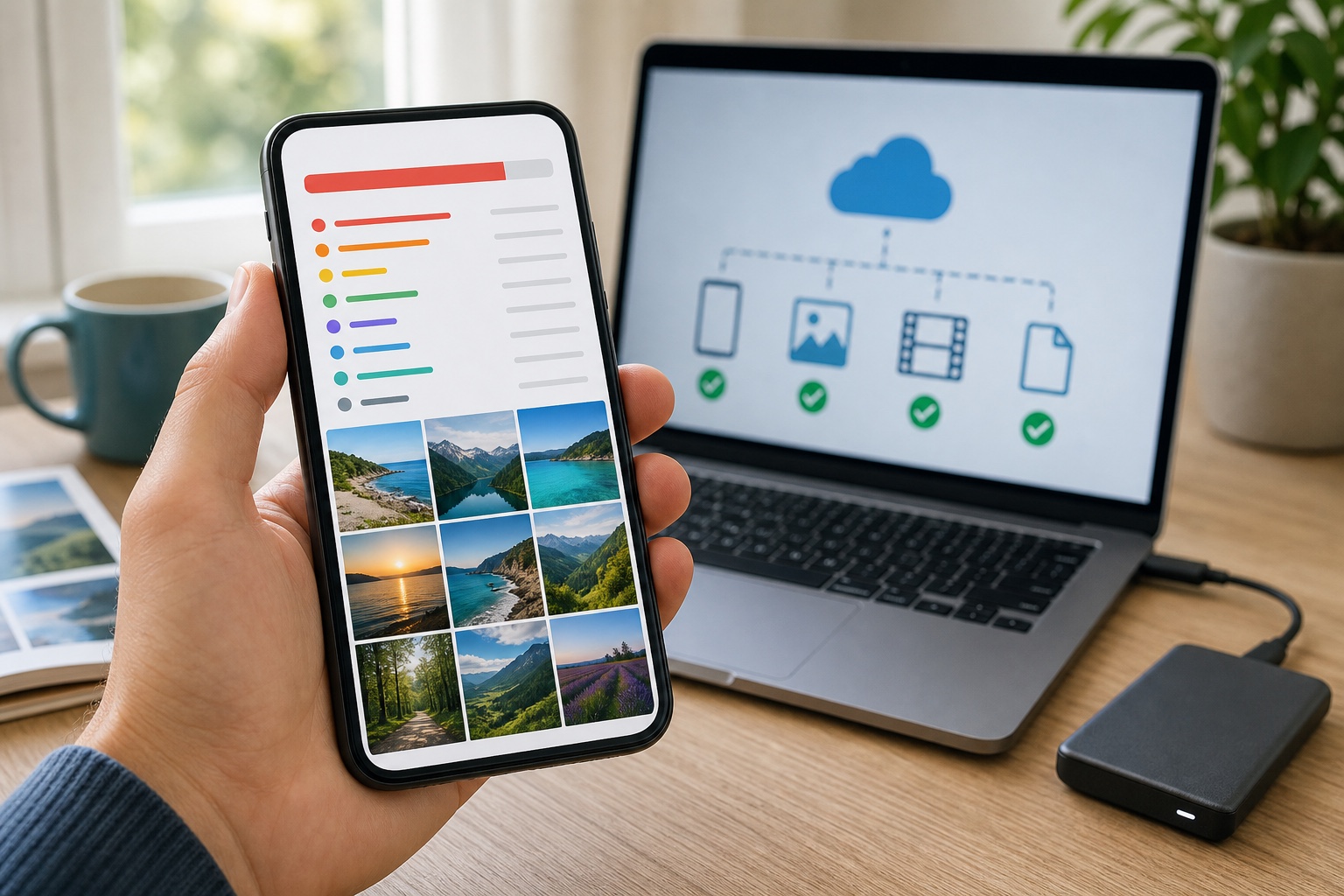
The "storage almost full" warning tends to arrive at the worst moment: before an update, during a trip or when you need to record a video. The riskiest reaction is rapidly deleting photos while assuming they must remain in the cloud. Depending on the service, deletion may instead synchronise across every device.
The safe method has three steps: understand what occupies the space, verify where the reference copy lives, then remove data from the phone without deleting its only copy. A few minutes of checking prevent a storage problem from becoming lost memories.
The quick answer
| Situation | Priority action | Possible gain | Main risk |
|---|---|---|---|
| photos and videos dominate | verify backup, then optimise or free local space | very high | synchronised deletion or incomplete backup |
| very large apps | remove downloads, clear supported caches or uninstall | medium to high | losing data stored only inside the app |
| messaging apps are full | sort videos and attachments inside the app | high | deleting an important document or useful conversation |
| forgotten downloads | inspect Files, music, podcasts and offline video | medium | low after review |
| large system category | restart, update and let the system finish maintenance | variable | installing a useless or intrusive cleaner |
Aim for 10 to 15% free space first. That margin helps updates, temporary files and new recordings. Weekly cleaning is unnecessary when backups and automatic downloads are configured correctly.
Step 1: measure before deleting
On iPhone, open Settings > General > iPhone Storage. iOS displays recommendations and ranks applications by storage use. Give the categories a few seconds to calculate before deciding.
On Android, the location varies by manufacturer but is generally under Settings > Storage. Files by Google also provides a cleaning view for junk, large, downloaded or duplicate files.
Write down the three largest items. An 8GB app does not necessarily contain 8GB of essential data: it may hold downloaded series, offline music, maps, podcasts or a cache. Conversely, a small app can provide access to local data that is not synchronised anywhere.
Avoid apps promising to clean the phone automatically. iOS severely limits what one app can delete elsewhere; on Android, a cleaner may request broad access for a result already available from system tools. No utility can decide whether a family video is disposable.
Step 2: distinguish sync from backup
A synchronised photo library presents the same collection on several devices. When an item changes or is deleted, that change can be reproduced everywhere. Apple states that a photo deleted with iCloud Photos is removed from the other devices using that account before remaining temporarily in Recently Deleted.
An independent backup preserves a copy that can take you back. Apple notes that iCloud Photos items are not duplicated in the device's iCloud Backup and recommends keeping backup copies of the library. Synchronisation mainly protects against losing the phone; it is weaker protection against an intentional deletion that propagates.
Before a large cleanup:
- open the library from the provider's website or a second device;
- check several old and recent photos and one video;
- confirm synchronisation is complete, without errors or a full cloud account;
- download a separate copy of irreplaceable memories to a backed-up computer or drive;
- note which account is actually connected to the phone.
A folder visible in Google Photos or iCloud does not prove every original has uploaded. Unstable Wi-Fi, low-power mode or a full cloud quota can leave an incomplete queue.
On iPhone: optimise instead of deleting
With iCloud Photos enabled, Optimise iPhone Storage keeps full-resolution originals in iCloud and lighter versions on the device when space is needed. The setting is under Settings > your name > iCloud > Photos.
This works well when you want the entire library visible without storing every original locally. It requires enough iCloud capacity and a connection to retrieve an original no longer held on the phone.
Do not expect a precise instant gain. iOS optimises progressively according to need, starting with less frequently accessed items. Leave the phone charging, connected to Wi-Fi and allow synchronisation to finish.
In iPhone Storage, review the recommendations:
- Offload Unused Apps removes the app but keeps its documents for a later reinstall;
- deleting an app generally removes the app and its local data;
- music, television, podcast and map downloads are best managed inside their respective apps;
- the duplicates album can merge photos and videos identified as duplicates.
Do not immediately empty Recently Deleted. That delay is your last opportunity to correct a mistake, not storage to purge reflexively.
On Android: check Google Photos before freeing space
Google Photos offers Free up space on this device. It removes local copies that are already backed up in Google Photos. They remain available in the app and at photos.google.com, but may disappear from the manufacturer's gallery and become unavailable offline.
Before using it, open Google Photos, tap your profile and inspect backup status. Check included folders too. Screenshots, received images or another app's folder may not be backed up under your configuration.
Two actions must not be confused:
- Free up space on this device removes backed-up local copies;
- moving items to the Google Photos bin deletes them from the cloud library and synchronised devices.
Files by Google can then remove temporary files and surface large files, downloads, duplicates or messaging media. Google warns that files removed by some cleaning actions are permanently deleted, so review the selection before confirming.
Messaging apps are often the real problem
WhatsApp, Messages, Telegram, Signal and social platforms accumulate photos, video, voice messages and documents. One family or work conversation can consume several gigabytes.
Use the messaging app's storage manager to rank attachments by size. This usually lets you remove one large video without deleting the whole conversation. First verify whether the file also exists in Photos, cloud storage or on the sender's device.
Then reduce future accumulation:
- disable automatic video downloads on mobile data;
- avoid saving every item both in the gallery and messaging app;
- remove temporary downloads after a trip or project;
- keep important documents in proper file storage, not only in a conversation.
A messaging backup does not necessarily replace exporting a critical document. Its main purpose is restoring the app under conditions supported by its publisher.
Downloads that are easy to forget
Video platforms, music, podcasts, offline maps and browsers create local copies. They are valuable on a train and pointless months after the trip.
Open each major app and look for Downloads, Offline or Storage. Remove watched episodes, automatically downloaded playlists, old maps and forgotten PDFs. This is safer than deleting through a generic file manager because the app knows what it can recreate.
Cache deserves less attention than media. A cache is designed to return. Clearing it may provide a temporary gain before using data and battery to rebuild it. Do so when an app misbehaves or the system identifies an abnormal volume, not as a daily ritual.
When System or Other is too large
A large system category can contain caches, logs, downloaded updates and temporary files. Start by restarting the phone, completing updates and waiting for storage analysis to settle.
Then inspect streaming apps, browsers and messaging because their data may be classified differently by each system. On iPhone, synchronising or updating can allow the system to recalculate and remove temporary items. On Android, use the application's storage controls instead of deleting folders whose purpose is unclear.
A factory reset should come only after a verified backup and when an anomaly persists. It is disproportionate for recovering a few gigabytes of identifiable downloads.
A safe fifteen-minute routine
| Minute | Check | Expected result |
|---|---|---|
| 0 to 3 | open storage and identify the three largest categories | know where to act |
| 3 to 6 | verify cloud backup and several originals | confirm another copy exists |
| 6 to 10 | remove video, audio, map and large-file downloads | quick gain without touching memories |
| 10 to 13 | optimise photos or remove only backed-up local copies | recover the main volume |
| 13 to 15 | check the bin, free space and next backup | preserve a safety net |
To organise a broader strategy across phone, computer, NAS and cloud, read our NAS, local backup and cloud comparison. Our personal computing guide also helps size storage, backup and device lifetime.
The best cleanup is not the one that deletes the most. It is the one that recovers enough space while leaving a clear answer to one question: where is the other copy of this file?



Join the discussion
Comments
Loading comments…