
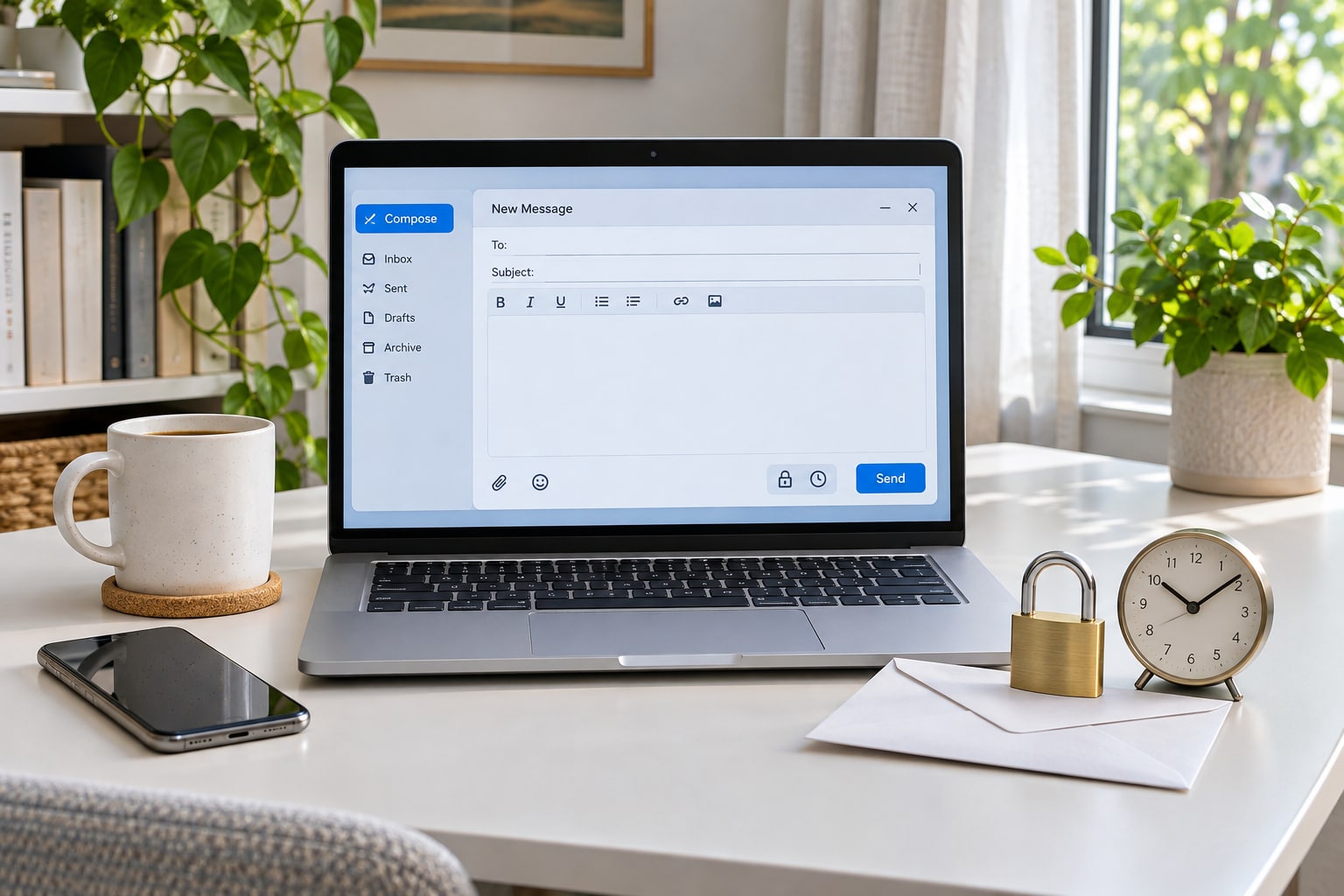
The name sounds reassuring: a “confidential” message can appear protected against any redistribution. It is important to separate available controls from what a recipient can still do. Gmail confidential mode does not guarantee that information can never be copied or photographed.
Google's help page explains expiry, access removal and passcode controls, while warning about screenshots and photographs. This practical explainer was checked on November 9, 2026; it is not an announcement of a new feature.
Choose a specific reason to use it
Our recommendation is to state the requirement clearly. Do you want to limit the viewing period or discourage accidental forwarding? That is different from sending a secret that must never leave a defined group.
A lock in an interface is not a general guarantee about the recipient's behaviour. Before sending, remove unnecessary information and check the address. Sophisticated controls do not automatically correct selecting the wrong person from contacts.
Consider the recipient's needs too. A short viewing window can create avoidable friction if the person will only be able to deal with the document several days later.
Test before an important message
On a computer, the official instructions describe a confidential-mode control in the compose window. It lets you choose expiry and opening conditions. If you require an SMS passcode, enter the recipient's number, not your own.
We suggest testing with an ordinary message and a willing recipient. Check that they understand how to open it and how to contact you if something fails. Interfaces and account types can affect the experience.
Removing access does not retrieve a copy
Revoking access can stop later consultation through the supported mechanism. It does not undo what somebody already read, wrote down or captured.
Avoid descriptions such as “the document destroys itself everywhere.” For sensitive evidence, first ask which channel is expected and the minimum information required. If a process specifies a particular secure portal, do not replace it with email merely because the compose window shows a protection icon.
Our recommendation is to match the tool to the actual requirement, not infer a guarantee from its product name.
Examine incoming messages as carefully
An unexpected message claiming to be protected deserves the same checks as any other: sender, context and actual request. Do not disclose a code to someone contacting you separately on the pretext of enabling access.
For your own important sends, record which documents you transmitted when the circumstances warrant it. That makes follow-up more precise than repeatedly sending the same attachment.
This complements our article about suspicious Gmail messages and unsubscribing. Managing access and recognising an unusual request are complementary habits; neither a label nor an icon replaces examining what you are being asked to do.
Cover visual: generated editorial illustration, not an official screenshot.
Join the discussion
Comments
Loading comments…