
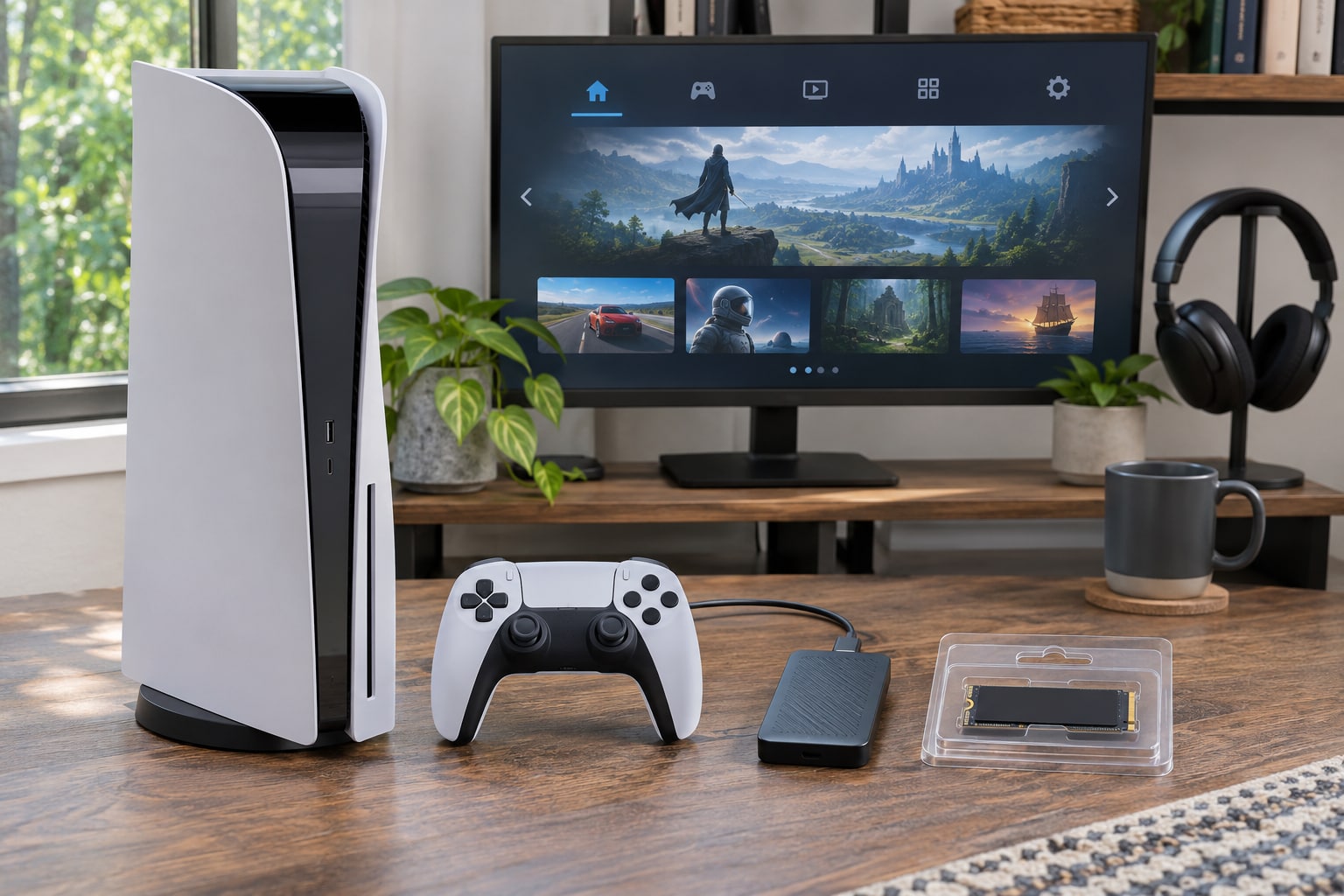
The console asks you to free space just before installing a game. Looking for a larger drive is tempting, but different storage options serve different purposes. On PS5, keeping a game and being able to launch it from that storage are separate questions.
The official PlayStation table distinguishes games, saves and captures. This practical explainer was checked on November 9, 2026. It is not a hardware test or a recommendation to buy a particular drive.
Establish what actually occupies the console
Start in storage settings and identify the important categories. Our recommendation is to separate replaceable installations from personal data before deleting anything.
A large game may be reinstalled subject to your access to that content; personal progress requires a separate check. Do not assume moving installation files automatically moves every kind of data associated with the game.
Record what you intend to preserve. A brief list is more useful than trying to remember which items mattered after a cleanup operation.
Understand USB extended storage
Sony says USB extended storage can hold PS4 and PS5 games. To play a PS5 game, however, its data must be moved back to console storage or suitable M.2 SSD storage.
Describe your actual use case: do you want to avoid downloading again, or keep more games ready to launch? If you switch titles frequently, moving time deserves attention alongside the capacity printed on the packaging.
Our advice is to judge convenience against that workflow rather than assume all external storage behaves like internal expansion.
Check an M.2 drive before buying or installing
The official installation page specifies compatible characteristics, dimensions and heat-dissipation requirements. “NVMe” alone does not establish that a product is suitable.
Compare the complete reference, including its heatsink, with your console's requirements. If you are uncomfortable installing hardware, seek help rather than improvising a teardown. This article does not replace the manufacturer's manual or safety precautions.
Three situations to avoid unnecessary spending
First, perhaps you mostly play one title and lack room for an update. Our recommendation is to inspect installations and captures you no longer need before buying anything. Targeted cleanup may be enough, but read what will be erased rather than selecting an entire category automatically.
Second, you may switch between several large PS5 games and want to launch them without moving data first. That requirement concerns directly usable game space, not merely an archive. Compare that workflow with the supported storage characteristics before comparing offers.
Third, a slow internet connection may make you want to retain installations instead of downloading them again. Keeping game files then becomes a separate objective. Estimate acceptable moving time and how often you will return to those titles. This reasoning does not replace checking licences and the access needed to launch them.
In all three situations, write down the original problem and assess the result after one change. Buying several accessories at once does not improve the diagnosis. An unsuitable device remains unsuitable even if its capacity looks generous.
Protect saves before formatting
Save data is not the same as game installation data. Storage and copying options differ according to data type and the service used.
Our recommendation is to check where your progress is held and the conditions of any synchronisation before an operation. Formatting can erase the chosen device's existing content: make sure it contains no other important files.
A useful choice starts with a need, not a terabyte figure. Our article about discs, licences and digital games concerns Xbox, but reinforces a relevant distinction: installed files alone do not define every right or condition required to use a game.
Cover visual: generated editorial illustration, not an official screenshot.


Join the discussion
Comments
Loading comments…