
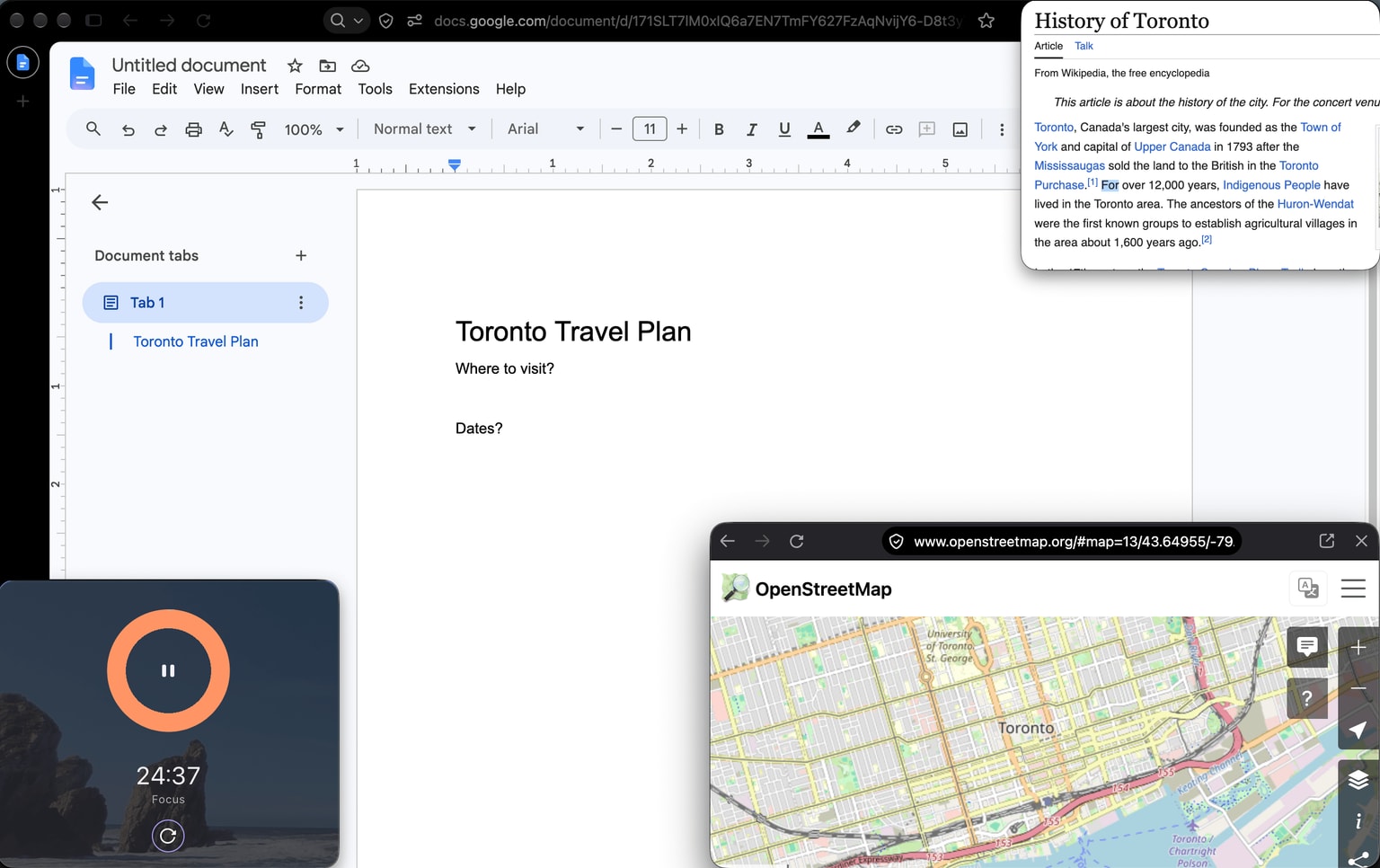
Keeping instructions visible while completing a document can mean repeatedly switching tabs. Firefox 160, released on November 10, introduces Mini Window, an always-on-top window for a tab or a selected part of a page.
The official notes describe an early version still being improved. They also add playback-speed control to the Picture-in-Picture video player, from 0.25x to 2.0x, visible when its window is large enough.
Another way to consult a reference
Mini Window serves a different need from switching tabs: information can remain visible while you work elsewhere. That might be a reference, instructions or something you consult repeatedly.
Our recommendation is to begin with a page containing no sensitive data. Check size and placement on your own display. An always-on-top window can help, but it can also cover the field or button you need.
The cover comes directly from Mozilla. It illustrates the announced behaviour rather than a test performed on our workstation.
Distinguish page windows from video controls
Picture-in-Picture and Mini Window should not be treated as one universal setting. Playback-speed control concerns the video player; the other feature keeps a page or selected area visible.
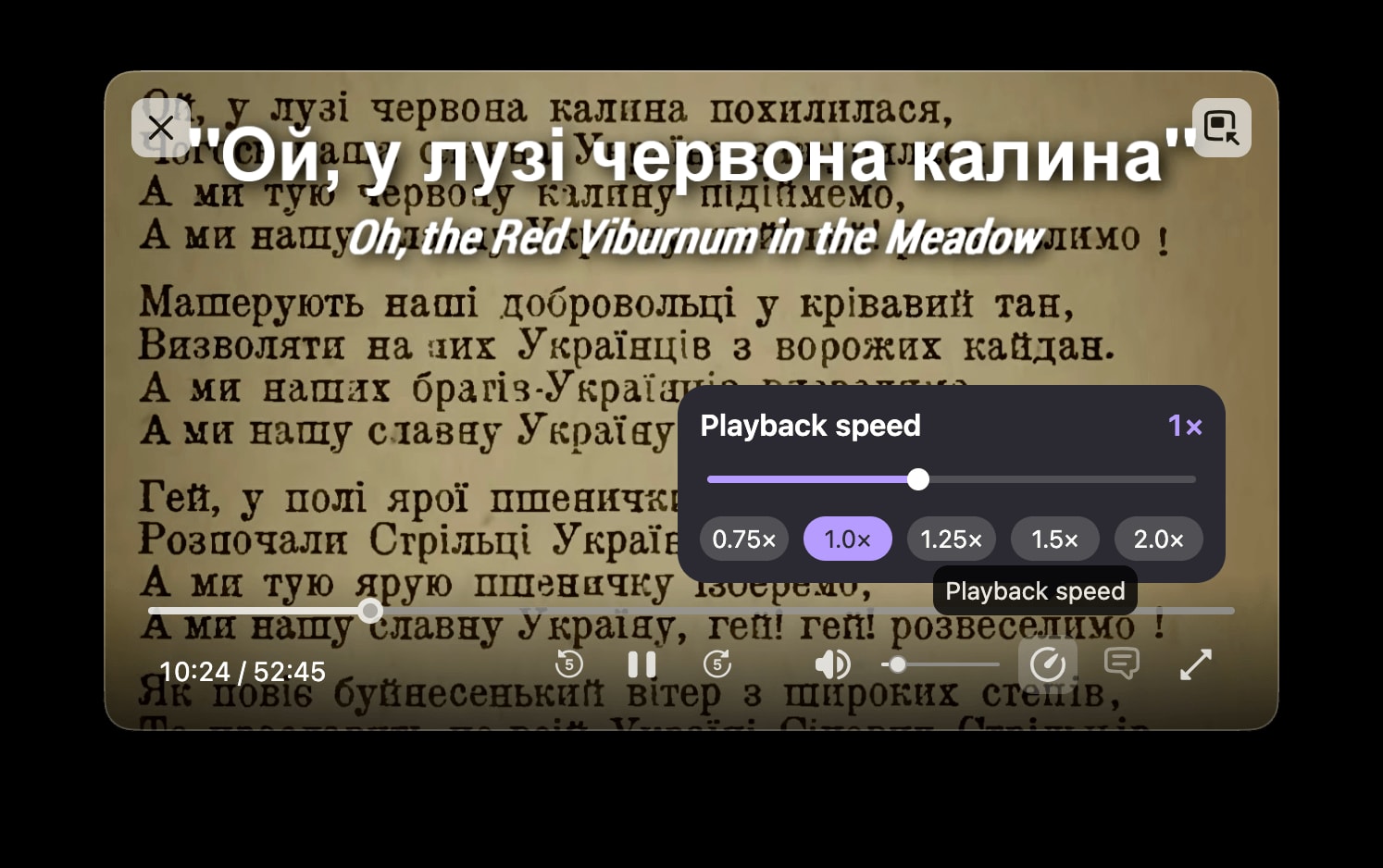
If speed control is missing, check the player's dimensions. The notes specify that condition: absence in a very small window does not necessarily mean the update failed.
Test realistic workflows
We suggest trying two situations: consulting a reference while writing, then following a video alongside a document. Compare readability with your existing arrangement.
Avoid immediately accumulating persistent windows. On a small display, the benefit disappears when everything overlaps. Close what no longer serves the task and check what stays visible when screen-sharing in a meeting.
These features do not automatically make a webpage available offline. Prepare necessary material separately for a journey or meeting without reliable connectivity.
Keep a simple way back to your normal layout. A useful experiment should not require rebuilding your entire browsing routine.
Update through the usual channel
Check the installed version through the browser's normal mechanism or your organisation's management tools. Do not download a supposed update from an unexpected advertisement.
This follows our Firefox 159 article with a different angle: organising reference material rather than repeating the previous release's feature list.
The meaningful result is whether your task becomes easier to follow, not merely whether another element appears on screen. A small improvement used deliberately can be more helpful than enabling every new option at once.
Visuals: official Firefox 160 release-note screenshots, credit Mozilla. Resized without cropping.



Join the discussion
Comments
Loading comments…