
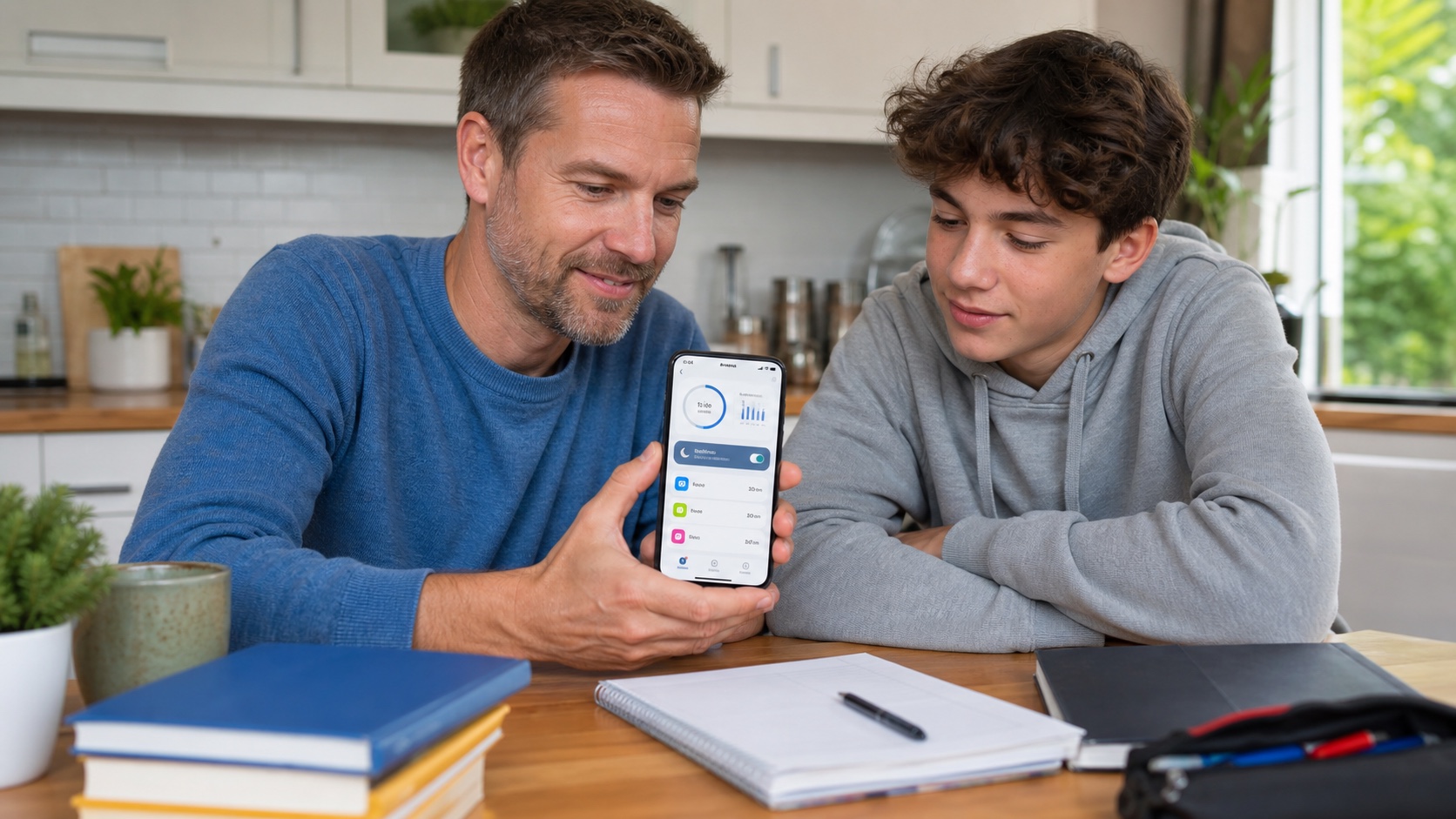
Android 17 is expanding the built-in parental controls Google first offered on Pixel to all compatible devices. A parent can set a daily allowance, downtime schedule, per-app limits and content filters directly in phone settings. A PIN protects changes without requiring an immediate second account or remote-management application.
The change makes initial setup easier, but it does not turn a phone into a sealed environment. Local controls do not provide all of Family Link's supervision, system apps cannot receive individual limits and contact restrictions do not cover every messaging service. The right setup depends on age, expected independence and how the phone is used at school or at night.
The short answer
| Question | Answer |
|---|---|
| Which devices are covered? | Devices updated to Android 17, with timing depending on manufacturer and model. |
| Is Family Link required? | Not for basic local limits. Family Link remains necessary for remote supervision and broader family features. |
| What can parents limit? | Total daily time, downtime periods, selected apps, installations and some web content. |
| Is the phone unusable after it locks? | The screen explains the active limit and a parent can grant bonus time with the PIN. Essential functions remain available. |
| Can system apps be limited? | No. Google says per-app limits do not apply to system apps. |
| Are emergency calls still possible? | Emergency and essential calling functions should remain accessible, but families should test the exact behavior of their device. |
What Android 17 adds to Settings
A Parental controls area centralizes features on the device. The parent chooses a PIN separate from the usual unlock code, then sets different allowances by day. Saturday can have more time than a school night without manually changing the counter every week.
Downtime locks most of the phone during a defined period, such as 9:30 p.m. to 7 a.m. Per-app limits separately contain games, social networks or video. Full blocking addresses situations where a timer is insufficient. Android also provides Play Store and web-content filters depending on the services in use.
When an allowance expires, a control screen explains it to the young user. A parent can tap Add more time, enter the PIN and grant a one-off extension. That avoids permanently changing the plan when someone needs to finish homework, complete a journey or make a family call.
Local setup suits a first phone that remains mostly at home, a shared device or a family beginning with a few understandable rules. It also gives parent and teenager a common screen for discussing the schedule instead of imposing an invisible restriction remotely.
Local controls and Family Link serve different roles
Android 17 settings operate on the device in hand. Family Link connects a child's supervised account to a parent's account and lets adults manage features from their own phone, including an iPhone or iPad. The two approaches can complement each other.
Family Link adds remote monitoring and adjustment, Google Play purchase approval, location alerts, School time and supervised Google Account management. It is better suited when a child takes the phone away from home, uses several devices or when two caregivers need consistent rules.
Local configuration is lighter but relies on PIN secrecy and physical access. It does not provide a complete remote dashboard. A parent who wants notification of a new installation, device location or schedule changes without holding the phone needs Family Link.
Avoid stacking contradictory rules. If an app has unlimited time in Family Link but is locally blocked, the outcome can confuse everyone. After enabling both layers, walk through a normal day together and confirm which rule wins on each device.
Setting a useful daily allowance
One total limit for every day appears simple but treats all use alike. An hour spent calling a relative, following a school exercise or watching short videos does not have the same effect. Use the global allowance as a guardrail and per-app limits for activities most likely to absorb attention.
A practical approach is to observe for several days before blocking anything. Identify periods when the screen delays sleep, interrupts homework or consistently replaces another activity. Then apply a constraint to that specific problem and agree on a date to review the result.
Days need not be uniform. Android supports different allowances by weekday. A small warning margin also reduces frustration when an activity ends abruptly. Creative, reading and communication tools may deserve unlimited status instead of sharing an entertainment timer.
Bonus time should remain an understandable exception. If it is granted every evening, the initial allowance probably does not match reality. If it is never available for a legitimate need, the control encourages workarounds instead of building judgment.
Protecting sleep with downtime
A phone beside the bed combines notifications, videos and conversations that delay sleep. A stable downtime window is often easier to understand than a quota expiring at a different hour each night. It clearly marks when the phone stops being an entertainment space.
Essential use must remain possible. In Family Link, selected apps can have unlimited access during Downtime or School time. Calls remain available, while texting during Downtime may depend on whether the messaging app is unrestricted. Google also says call and text notifications are silent during School time even though communication remains possible.
Test the arrangement before relying on it. Calling caregivers, reaching a trusted contact, displaying a travel ticket and activating emergency features are scenarios to verify. Manufacturers can alter screens, and a third-party app may not honor the same exceptions as Google or Samsung software.
A physical rule can support the software: charge the device in a shared room, use a separate alarm clock and agree on the schedule. Technical control then confirms family organization rather than becoming its only foundation.
Per-app limits have blind spots
Google says system apps cannot receive individual limits. Blocking the Google app may also prevent Android and other software from working as expected. Do not prohibit everything that appears unnecessary without checking dependencies.
Browsers and messaging services create another gap. Limiting a social app does not necessarily block its website. Keeping a browser available for homework also exposes other material. Web filters reduce the problem but cannot guarantee that every unsuitable page or chat feature is excluded.
Communication limits also need careful interpretation. Family Link can restrict calls and texts to parent-managed contacts on selected devices running Android 14 or later and Wear OS 5 or later. The rule covers services including Google Messages, Samsung Messages and Google Dialer, not every application capable of messaging or calling.
A game with chat, video platform or encrypted messenger keeps its own contact system. Parents need to review communication features and in-app privacy settings. An Android-approved contact list does not replace each service's controls.
Managing contacts without cutting useful links
Family Link offers three levels: anyone, parent-added contacts plus selected groups, or only contacts added by the parent. A child can request a new number, but cannot communicate with it before approval in the strictest mode.
This is useful for a first phone or unwanted-call risk, but it requires maintenance. School numbers, grandparents, friends' parents, transport and activities should be anticipated. A list that is too short can block a legitimate call at the wrong time.
Explain what is filtered and what is not. A young user should know that an unknown person may still make contact through an uncovered app and understand how to block or report the account. That reflex matters as much as the technical list.
Content filters do not replace guidance
The Play Store filter sets the maximum content rating for downloads. Family Link approval adds a caregiver decision before installation or purchase. Web settings can attempt to block explicit sites or restrict Chrome to an approved list.
No rating examines every item displayed after installation. An approved app can host user-created videos, ads or discussions. Recommendation systems evolve with activity and may gradually introduce more mature topics without another installation.
Review accounts, privacy settings, in-app purchases and social features. Maintain a conversation in which a child can show disturbing material without automatically fearing confiscation. Filters reduce accidental exposure; they cannot interpret context like an attentive adult.
A ten-step starting configuration
- update the phone and confirm Android 17 is installed;
- choose a unique parental PIN different from the unlock code;
- observe real use before setting the first restrictions;
- adjust daily allowances for each day of the week;
- apply specific limits to the most absorbing apps;
- preserve necessary school, creative and communication tools;
- schedule nighttime downtime and test important calls;
- add Family Link when remote supervision, location or purchases require it;
- review contacts, chats and internal app settings;
- agree on a review after one or two weeks.
Before handing back the phone, deliberately reach a limit, request bonus time and test the end of downtime. This shows everyone what to expect and prevents discovering a block during an emergency or school day.
The most useful control is understandable
Android 17 shortens the distance between parental intent and configuration. A family can begin on the phone with a PIN and a few schedules, then add Family Link when remote control becomes necessary. That progression is more accessible than requiring complete supervision on day one.
Success is not measured by the number of disabled buttons. An effective rule protects sleep, homework and relationships without making every exception suspicious. It is known, tested and open to revision. Android's new tools provide a clearer framework; families still decide together how to use it.


Join the discussion
Comments
Loading comments…